

by Jasen Kintner, Director of Research & Development at GEOGRAPH

If you have heard about Esri’s ArcMap end-of-life plans, and you are now ready to make the switch from ArcMap to ArcGIS Pro, here is a 5-step guide to get you upgraded. Don’t worry, we’ve got you covered with this step-by-step guide to ensure your migration is smooth and stress-free.
1. Downloading and Installing ArcGIS Pro
First things first, you need to install ArcGIS Pro on your computer.
The good news here is that Esri offers a free trial so you can explore its features before committing. Head over to the ArcGIS Pro trial page to get started.

Once you’ve downloaded the installer, run it and follow the prompts. You’ll need to sign in with your Esri account. Don’t have one? No worries, you can create one for free.
2. Importing Existing ArcMap Projects and Data
One of the biggest concerns is moving your existing projects and data. Thankfully, ArcGIS Pro makes this easy.
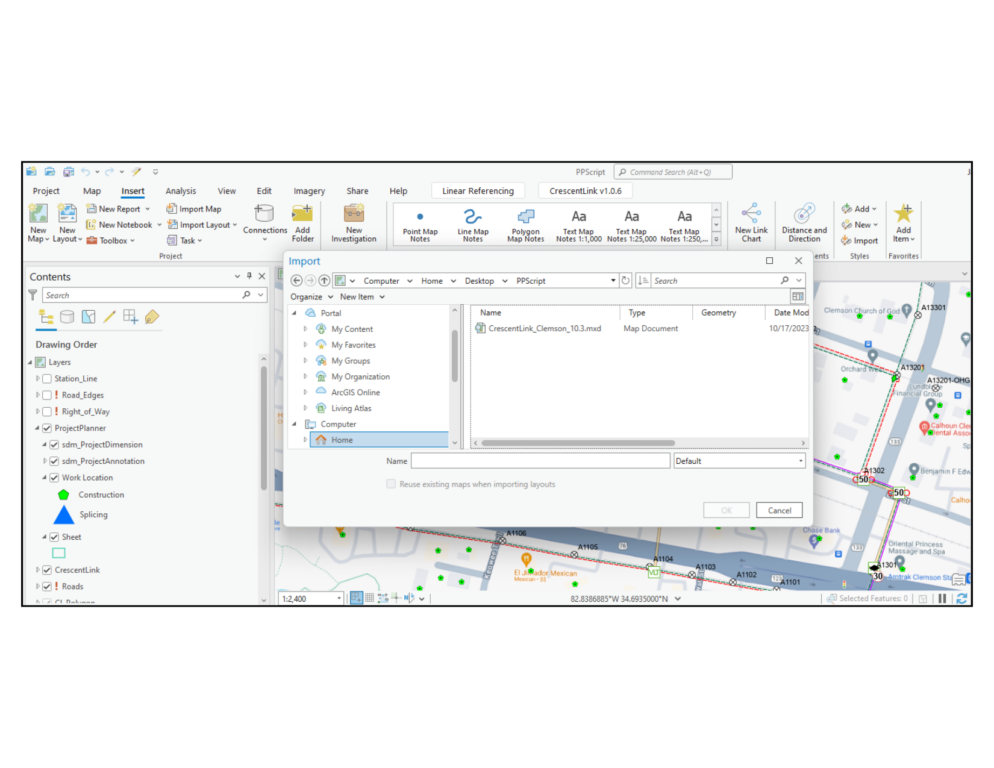
Begin by opening ArcGIS Pro and select the “Import Map” option from the “Insert” tab. Find your .mxd file and let ArcGIS Pro do the rest. It will import your map, data frames, and layers, preserving all your settings.
Learn more about importing maps.
3. Locating Commonly Used Tools in the New UI
You will see a new look, and adjusting to the ribbon-based interface might take a bit of time, but you’ll find many familiar tools, often with better functionality.
The “Map” tab has tools for maps and layers, “Analysis” for geoprocessing and spatial analysis, and “Data” for managing and editing data.
To find specific tools quickly, use the powerful search function. Just type in the tool’s name, and ArcGIS Pro will point you in the right direction.
4. Addressing Compatibility Issues with Scripts and Customizations
If you’ve developed custom scripts or tools for ArcMap (also known as ArcGIS Desktop), you might face some compatibility issues. ArcGIS Pro uses Python 3, while ArcMap uses Python 2, so some scripts may need modifications. Esri provides comprehensive documentation to help you update your scripts. Check out the Python migration guide.
5. Utilizing Esri Resources for a Smooth Transition
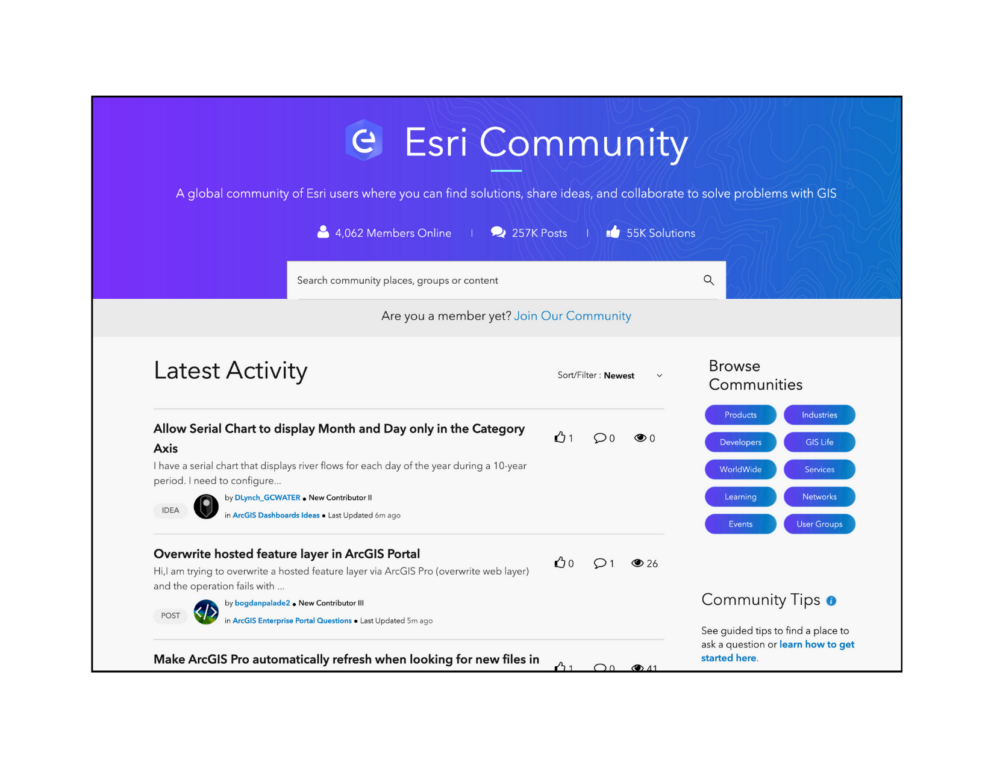
Esri offers a ton of resources to support your transition. The ArcGIS Pro Help documentation is a great starting point. The Esri Community forums are also a fantastic place to ask questions and share experiences.
For more structured learning, check out Esri’s training courses and tutorials. Many of these are available online, so you can learn at your own pace.
ArcMap (ArcGIS Desktop) Version 10.8.1 is the final release and Esri reports that it will be supported until March of 2026. Migrating now, or at least planning for your future migration, from ArcMap to ArcGIS Pro makes good sense, while it also opens up a world of new possibilities.
By following this 5-Step Guide to help manage ArcGIS end of life, you’ll ensure a smooth transition and can begin to leverage the powerful capabilities of ArcGIS Pro. With enhanced functionality, improved performance, and a wealth of support resources, ArcGIS Pro is your future in GIS. Start planning to make the switch and set yourself up for success.

Jasen Kintner is Director of Research & Development at GEOGRAPH and has over 20 years of telecommunications experience. He has published research on network middleware protocols and intrusion detection, developed standards for computer networking, and managed telecom network strategy and planning. Since June of 2018, Jasen has been responsible for new product development at GEOGRAPH and has introduced CrescentLink Web Experience and CrescentLink for ArcGIS Pro. Jasen and his team help GEOGRAPH support over 170 customers in the United States, Canada, the British Virgin Islands, Bermuda, Guam, and Guyana.